Tip 6: Using Masks - Technique 1
This tip will show you how to create text (or other shapes) that looks
like its made up of graphics. In my example, I will make the phrase
"Gardening Tips" look like it is made of plant-leaves, and then
place it on an eBook cover that I am making using CoverFactory.
I will explain how to do this tip using the Paint accessory that ships
with Windows (you'll find it on your Start menu most likely under Programs/Accessories),
but you can do the same trick using other paint programs too
(although exact details of menu options etc., may differ).
- Find the image that you want to mask, and load it into Paint:
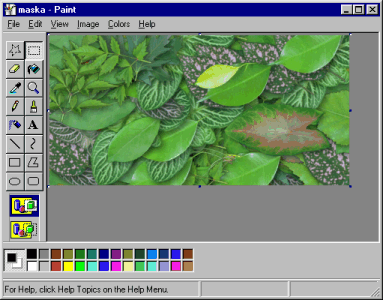
Here I have loaded an image that shows a scattered array of plant-leaves.
- Check the size of the image:
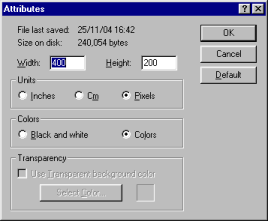
In Paint, the easiest way to do this is to click Attributes... on
the Image menu (or just press Ctrl+E for a keyboard shortcut to
the same thing). Make a note of the values.
- Start a second copy of Paint from the Start menu:
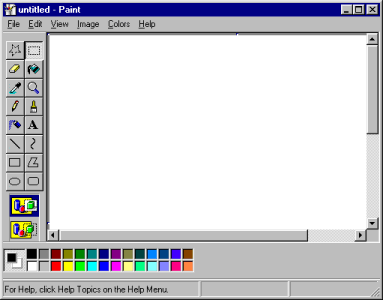
The new copy of Paint starts off with a blank image.
- Make sure the blank image is the correct size.
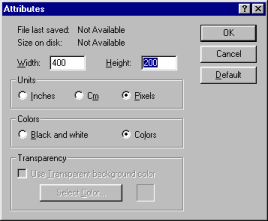
When the new copy of Paint starts, the blank image may not be
the correct size, so use Attributes... on the Image menu
to size it to the exact same size that you noted down in step 2.
- Draw your mask on the blank image:
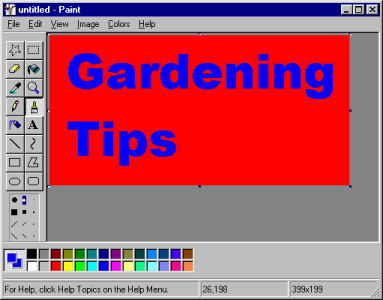
Next draw the mask that you want to use.
You should draw in only 2 colors (like a silhouette of the final shape
that you are masking to), and
use colors which don't occur in the original image.
For my example, as my plant-leaves
are various shades of green (plus perhaps a little black, white, browns and grays),
I decided to use red and blue to draw my mask.
When you are finished to drawing, click Select All, then click Copy
(both options are on the Edit menu).
- Go back to the first copy of Paint, and change the paste settings:
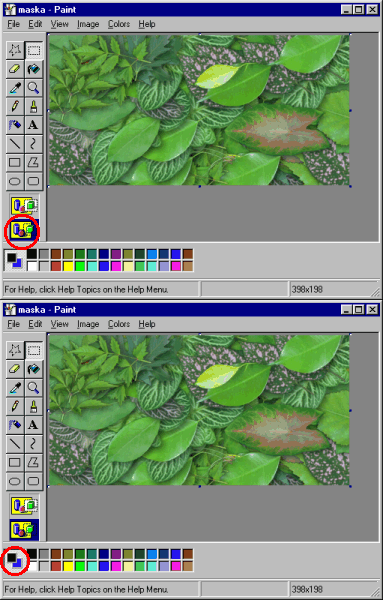
The flashing red circle indicates the settings to change:
- Set the Paste mode to Transparent.
- Set the background color to the silhouette color.
In Paint, you can do this by right-clicking on a color rectangle in the palette at
the bottom of the screen.
- Paste the mask on to the image:
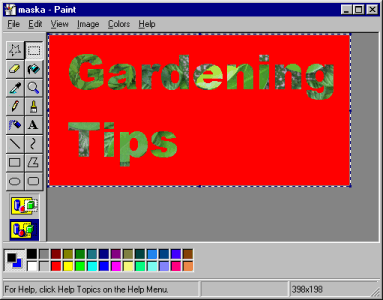
Click Paste on the Edit menu.
Paint will stay in the special pasting mode (allowing you to move the
mask around) until you select another drawing tool - so it's a good idea to
click one of the drawing options (for example, the Rectangle) in the the Tool
Box on the left).
Your mask is now ready to use. You might want to save a copy (using
Save As... on the File menu) for safekeeping.
When you're ready to proceed to the next step,
click Select All, then click Copy
(both options are on the Edit menu).
- Switch to CoverFactory:
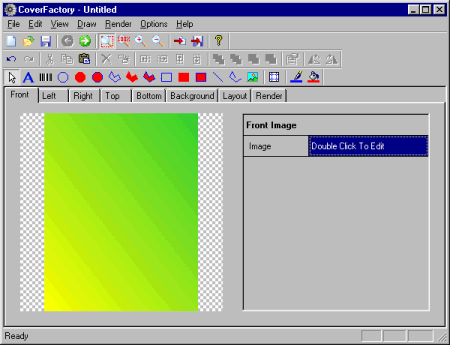
Start CoverFactory and go to the side of the image where you want
to paste your masked image.
- Paste in the mask:
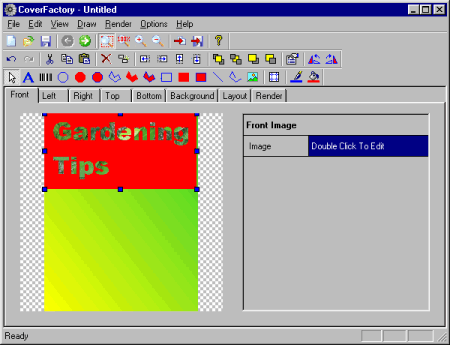
Click Paste on the Edit menu to paste in
the mask image.
If the mask image is not in the right place, you can use
the mouse to drag it around (if possible try to avoid resizing the
mask, and you'll get better results in the final rendered version of your
cover).
- Make the mask color transparent:
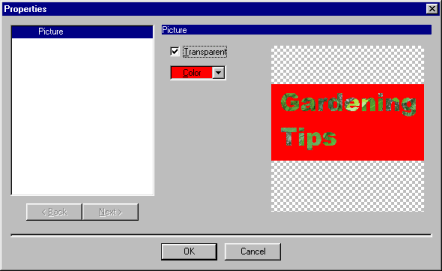
When your mask image is in the right place, click Properties...
on the Edit menu.
Using the dialog box, set the image to Transparent, and select the
mask color as the transparent color.
- Hey presto!
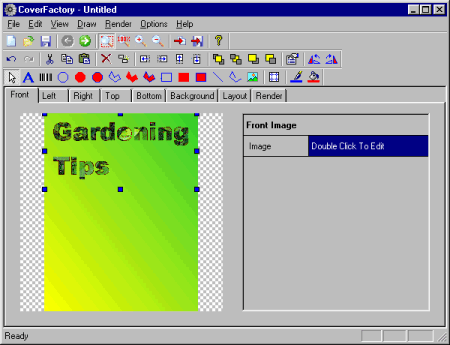
You're done, and now ready to proceed with drawing whatever else you
need on the cover, and eventually rendering it (using the normal CoverFactory
procedures).
In my example, I now have the fancy text made of plant-leaves on the
front of my eBook cover... but perhaps I ought to reconsider my choice of background
for the front?
|


